Haltech Interceptor Software
Saving and Loading files
To load information into the interceptor the user has two options. Firstly the user can select File -> Open to load a file of their choice in familiar windows manner. This will load a new file but prevent accidental overwriting of the same map file name. If the user desires to reload the same file they can force this by selecting File -> Load File. The second option is to Tab to the Setup menu tree on the lower left side of the screen and select the load default map option. This option is recommended to load a default map when first starting a car. This presents the following dialog:
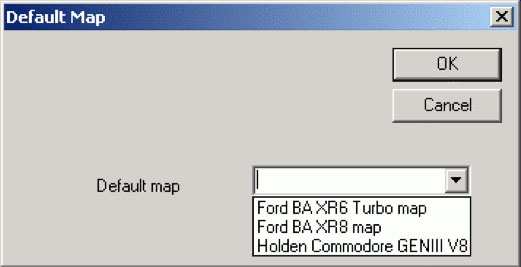
The user can select the map appropriate for their vehicle, and then click on the OK button. To save files the user can use the File -> Save menu to save over top of the current file name, or File -> Save As menu to save the file to a different name.
Tuning and Navigating through the Front end The interceptor program has been designed so that the user can navigate using only the keyboard. To navigate between the setup view and tuning view windows, the user can press the Tab key.
To navigate through the setup menu the user can press the up and down arrow keys. Once the user gets to the desired item, the enter key is pressed to select that item. This will display the corresponding setup dialog box. For the setup pages that contain multiple tabbed pages the user presses Ctrl - Tab to cycle through the pages. To apply any setup pages the user can press Enter or click OK.
To adjust the fuel, ignition and boost maps the user can press "F" to jump to the fuel map, "I" to jump to the ignition map, or "B" to jump to the boost map. This will shift the focus to the text view in the bottom right corner of the screen.
Once in tuning mode the user has several options for adjusting the maps. To change a single cell at a time the user simply uses the arrow keys to go to the desired cell, and types in the desired number. To select multiple values the user presses the Ctrl key and the up and down arrows to increase the selected cell range. To change these values to a desired value the user presses the V key and this changes all selected values to the entered value. A summary of the keystrokes is shown below:
| Key | Function |
| Ctrl - C | Copy selected values |
| Ctrl - V | Paste copied values |
| Up arrow key | Move selected value up the RPM range |
| Down arrow key | Move the selected value down the RPM range |
| Right arrow key | Move the selected value up through the load index range. |
| Left arrow key | Move the selected value down through the load index range. |
| Ctrl - Up arrow key | Increases the no of selected points up the RPM range. |
| Ctrl - Down arrow key | Increases the no of selected points down the RPM range. |
| Ctrl - Right arrow key | Increases the no of selected points up through the load range. |
| Ctrl - Left arrow key | Increases the no of selected points |
| L | Linearise the selected values |
| Space bar | Take selected values to the current engine position |
| Ctrl - Space bar | This centers the selected values to one point. |
| V | This allows the user to enter a specified value for the selected values |
| Enter | This applies the changes |
| T | This turns the trace function on and off |