Haltech Interceptor Software
Starting the Software and going online
To start the software, double click on the Haltech Interceptor Programmer Icon. This will display the following screen:
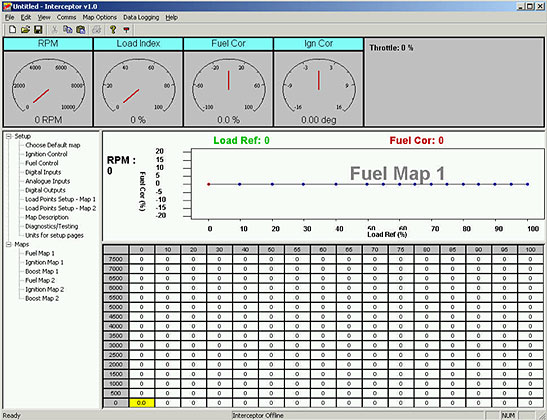
To bring the Haltech Interceptor online the user must first ensure the interceptor has power and the communications cable is connected. Once these two have been checked the user can click on the communications cable icon on the tool bar at the top of the screen:

When this is clicked the map in the Haltech Interceptor is transferred to the front end. The status of this is outlined in the status bar at the bottom of the screen:

Once the map load is complete the message on the Status bar will show "Interceptor Connected". If there is a communications disruption the Status bar will display "Interceptor Disconnected".
The front-end software uses Com Port1 as the default communications port. Should there be a need to select another com port, for example if the computer has no RS232 port and a virtual USB RS232 port is being used, then the user can select the desired Com Port in the Comms -> Comms Setup menu. This needs to be done when the Haltech Interceptor is offline. If the user needs to reset the Haltech Interceptor, for example after a setup change, the user can select Comms -> Reset ECU. The user will be prompted about the progress of the reset of the interceptor in the status bar. Once complete the status bar will display "Interceptor Connected" and the changes will be applied. Should the user need any further guidance then the user should press F1 or select help from the menu.